
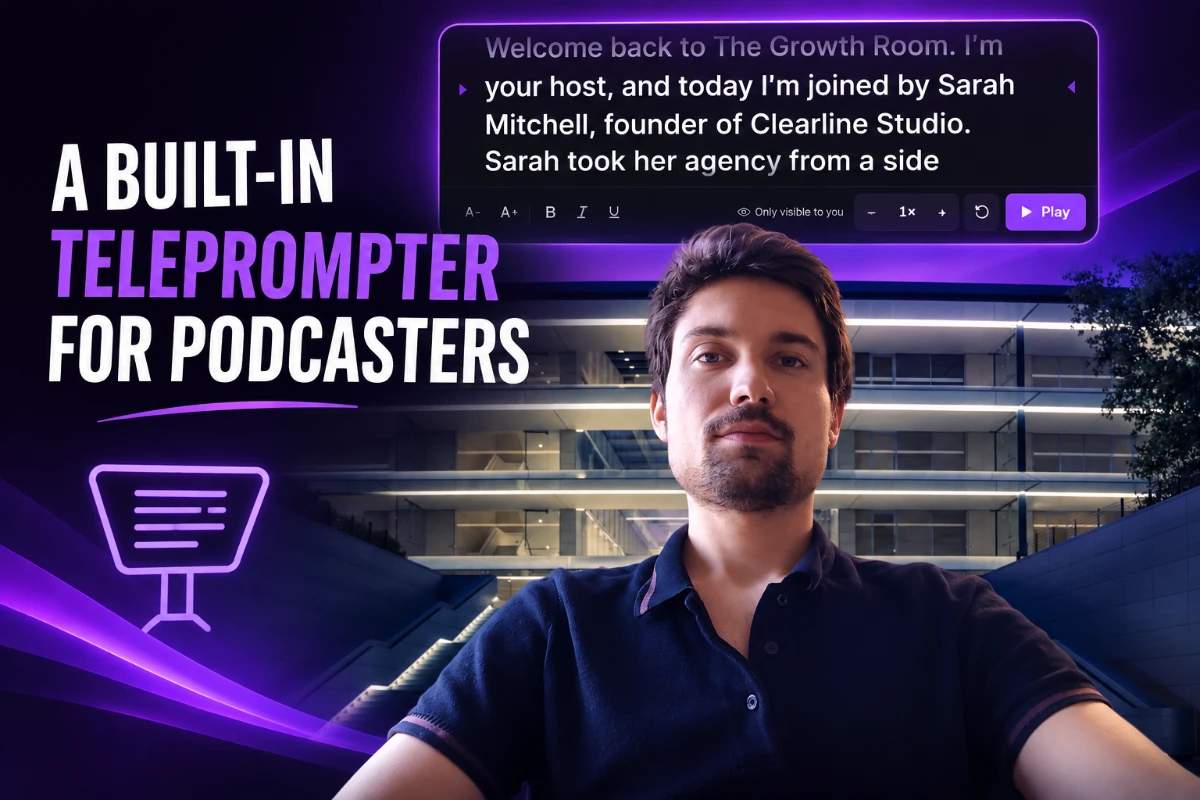
Every podcaster has notes.
An intro you want to get right. A list of questions for your guest. A sponsor read that has to be word for word. A guest's name and job title you really don't want to mispronounce.
The problem is where those notes live.
On a second monitor. In a document behind the recording window. On a sheet of paper next to the keyboard. Wherever they are, your eyes leave the camera to find them, and on a video podcast your audience sees every glance.
So we built a teleprompter straight into the Clear-Cut Podcasting recording studio. It's free for every podcaster on the platform, and for every guest you invite.
A Teleprompter Built Into Your Recording Studio
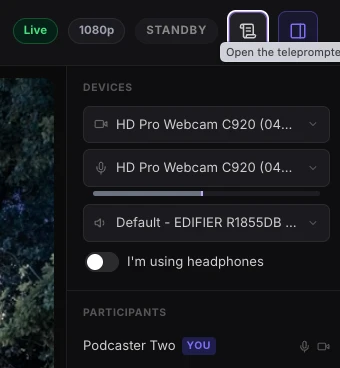
There's nothing to install and no separate teleprompter app to keep open next to your recording. In the recording studio, click the teleprompter button in the top right, next to the session status, and a script box opens directly above the video tiles.
The box is deliberately narrow and centered. Your webcam sits at the top center of your screen, so that's where your script sits too. Your eyes travel a few centimeters instead of across the whole monitor, and on camera you look like you're talking to your audience, not reading off to the side.
Paste in your script, press Play, and the text scrolls up at the speed you set. Two small purple markers show the reading line, so you always know which line you're on.
Free for Every Podcaster, and Every Guest
The teleprompter isn't a paid add-on. It's part of the recording studio on every account, including the free one.
It works for your guests too. Anyone who joins through your invite link gets their own teleprompter in the studio, without creating an account. If a guest wants their key talking points in front of them, they can paste them in and keep their eyes on the camera as well.
Only Visible to You
Your script is private.
The teleprompter runs entirely in your own browser. Your guest doesn't see it, it isn't shared with anyone else in the room, it isn't sent to our servers, and it never appears in your recording. Each person's teleprompter is their own.
That means you can keep reminders in there that are just for you: "slow down", "ask about the 2019 launch", "don't forget the call to action".
How to Use the Teleprompter
- Open it. Click the teleprompter button in the studio header. Click it again to close it.
- Paste or type your script. Text pasted from Google Docs, Word or a web page comes in as clean plain text, so it always looks the same, whatever it was copied from.
- Highlight what matters. Select words and use B, I or U for bold, italic or underline. Keyboard shortcuts work too: Cmd+B, Cmd+I and Cmd+U on a Mac, or Ctrl on Windows.
- Set the text size. Use A− and A+ until you can read it comfortably from where you sit.
- Set the speed. Choose anything from 0.5× to 3×. You can change the speed while it's scrolling.
- Press Play. The script scrolls past the reading line and stops by itself at the end. Press Pause at any time to stop and edit.
- Start again. The reset button takes you back to the beginning for the next take.
It Survives an Accidental Refresh
Recording sessions don't always go to plan. A browser tab gets refreshed, a device needs reconnecting, a page has to be reloaded.
When that happens, your teleprompter comes back exactly as you left it: the same script, the same formatting, the same speed and text size, and roughly where you were in the script.
It's kept in that browser tab for 2 hours and then cleared. It doesn't follow you into other recording sessions, so every new recording starts with a clean slate.
How to Use a Teleprompter Without Sounding Scripted
A teleprompter is a tool, not a script you have to follow word for word. A few habits make the difference between sounding prepared and sounding like you're reading:
- Script the parts that need precision. Your intro, sponsor reads, calls to action and outro benefit from exact wording. Conversations don't.
- Use bullet points for interviews. For a guest conversation, keep a short list of questions and topics, not full sentences. You'll listen better and sound more natural.
- Bold names and numbers. Guest names, company names, dates and statistics are what you most need to get right. Make them stand out.
- Go slower than you think. Start at 1× or below and speed up if you're waiting for the text. Rushing to keep up with the scroll is what makes people sound scripted.
- Pause it during conversation. The script only moves while it's playing. Pause while your guest is talking and play again when it's your turn.
- Make the text bigger than you need. Larger text means fewer words per line and less eye movement, which is far less noticeable on camera.
If you're preparing a remote interview, our guide on how to record a remote podcast covers the rest of your setup, and it's worth sending your guest the 3 biggest mistakes guests make when recording remotely before the session.
Frequently Asked Questions
Is the teleprompter free?
Yes. It's included in the recording studio on every Clear-Cut Podcasting account, including the free account, and for every guest you invite.
Can my guest see my script?
No. The teleprompter is only visible to the person using it. Nothing is shared with other participants in the room.
Will the teleprompter appear in my recording?
No. Recordings capture your camera and microphone only. The teleprompter is part of your screen, not part of the recording.
Do I need to download a teleprompter app?
No. It runs in your browser, inside the recording studio. There's nothing to install for you or your guests.
What happens if I refresh the page?
Your script, formatting and settings come back for up to 2 hours in the same browser tab. After that, or in a new recording session, it starts empty.
Try It on Your Next Recording
If you already record with Clear-Cut Podcasting, the teleprompter is in your recording studio now. Open it before your next session and paste in your intro.
If you don't yet, create a free account and get 2 hours of HD recording every month, with the teleprompter, remote guests and cloud recording included. It also works with the Planner, so you can schedule the episode, invite your guest and walk into the studio with your script ready.